
This post covers my tried-and-tested selection of the best WordPress plugins for must-do tasks such as image compression, backup and migration, on-site SEO, security, and performance optimization. The plugins featured here are Imagify, WPvivid, SEOPress, Wordfence, and WP Rocket. After experimenting with many popular options, I narrowed it down to this refined list. Below, I share short descriptions of my favorite plugins along with practical advice on using them effectively. And at the end, you’ll find an overview table of all plugins.

Imagify: image optimization, free, subscription
Imagify, which has over 1M installs, is my go-to image optimization plugin thanks to its rich feature set, powerful algorithms, and clear user-friendly interface. Imagify supports compression of JPG, PNG, GIF, and PDF files. The plugin allows you to: generate the next-gen WebP and AVIF formats and serve them on the front end, apply either Smart (best quality/performance balance) or Lossless (no visible change) compression, and optimize images in bulk, automatically on upload, or manually one by one. It also lets you restore original images, exclude thumbnails, optimize theme images, and much more. Imagify works seamlessly with most gallery, slider, and image plugins.
The free Starter plan includes 20MB per month (roughly 200 images). To make the most of it, I recommend disabling the “Auto-Optimize images on upload” option under Settings > Imagify and only optimizing the final versions of your images individually. You can also save quota by excluding certain thumbnail sizes from optimization on the same settings page. The full list of image thumbnails displayed there, generated by your theme, plugins, and WordPress itself, is a handy piece of information that’s often difficult to find elsewhere.
Unlimited sites, Imagify pricing plans, upgrading and downgrading, and quota usage
You can use Imagify on any number of websites, no matter which plan you choose – free or paid. To connect a site, you just need to enter a special access key (API token) provided in your Imagify account. The plugin asks for this key or offers to register right after installation. If several sites are connected to your Imagify account, your monthly MBs are split equally among them.
Hence, if you need to optimize more than 200 images per month, Imagify offers several flexible pricing plans. The Monthly Growth subscription at $5.99/month is the most practical option, providing 500MB per month (i.e. around 5000 images). You can easily downgrade to the free Starter plan or upgrade back to Growth on a month-to-month basis. For ongoing use, the Yearly Growth plan at $49.90/year is a better deal. For heavy users, Imagify also offers Infinite subscriptions for $11.99 monthly or $99.90 per year.
And to fully cover the spending side, here’s a bit about quota consumption. Quota usage is calculated from the original size of an image before compression, plus the original size of all its thumbnails selected on the Imagify settings page, regardless of how much space the optimization saves. Note 1: If you first optimize an image with Lossless compression and later re-optimize it with Smart, the quota will be deducted twice. Note 2: If you restore an image, the quota will not be refunded.
How to serve WebP image versions on the frontend
Imagify can both create next-generation WebP and AVIF versions of your images and serve them on the frontend. These two features work independently – you can generate modern formats with Imagify and deliver them using another plugin.
Below are three common ways to serve next-gen images in WordPress:
Method 1: using ‹picture› tags (via Imagify)
This method replaces ‹img› tags with ‹picture› tags to deliver WebP images. It works in most browsers but can cause layout issues depending on your theme or plugins. If that happens, see Imagify’s My images are broken guide.
Method 2: using rewrite rules (via Imagify)
This method adds rules to your .htaccess file to serve WebP or AVIF images without changing your site’s HTML. It works well on Apache servers but may fail on Nginx due to restrictions, or when using Cloudflare/CDN. If issues occur, your hosting support can usually fix it by adjusting server settings. And in addition, consult the same Imagify guide linked above.
Method 3: via caching plugin (e.g., WP Rocket)
Here, Imagify generates WebP files while WP Rocket handles delivery. WP Rocket updates cached pages to reference the WebP versions automatically. Since both plugins are developed by WP Media, they’re fully compatible.


WPvivid: backup and migration, Free, Pro
WPvivid is my favorite backup and migration plugin for WordPress, used by over 1M active installations and known for its straightforward approach and generous free version. It lets you back up and restore your website after failed updates, testing issues, hacking, or when moving to a clean WP installation. The free version supports full site backups, including the database, plugins, themes, uploads, and other core files. Backups can be stored locally or sent to popular cloud storage services such as Google Drive, Dropbox, OneDrive, and more. You can run backups manually, schedule automatic backups, select predefined components, and migrate sites using backup and restore.
The Pro version expands these capabilities with advanced features such as full backup customization, staging environments, site-to-site migration, multisite support, incremental backups, fresh WP install creation, and other additional features. Pricing starts at a competitive level of $49 yearly ($99 lifetime) for two domains and scales for more sites. Overall, WPvivid is a reliable tool for users who want a simple yet powerful backup and migration solution, especially if they value strong free features and easy site transfers.
Know-how: If you use the WPS Hide Login plugin as I advise further to reinforce Wordfence, disable it temporarily to be able to connect WPvivid to any remote storage, e.g., Google Drive. After the connection is established, you can reenable the WPS Hide Login back.


SEOPress: search engine optimization, Free and Pro
SEOPress is a top-tier all-in-one WordPress SEO choice, trusted by over 300K users for its affordability and feature set. After trying many SEO solutions myself, I also settled on SEOPress. The reasons are: it’s feature-rich, has a clean interface with no ads, integrates smoothly with popular plugins and builders, remains lightweight, and lets you disable unused modules. On top of that, its all-inclusive Pro version is one of the best deals on the market at $49 per year for one site. SEOPress Free already provides everything you need for solid on-site SEO: titles and metas, XML and image sitemaps, content analysis with unlimited keywords, redirections and canonical URLs, custom Facebook and X cards, and much more. It also lets you set global schema markup for your Google Knowledge Graph. However, in case you need a more advanced full-scale structured data generator with both automatic and manual schema options, SEOPress Pro is worth considering.
Overview of SEOPress Pro features: schemas, AI, redirections, etc.
Manual schemas: In SEOPress Pro, a manual schema is applied to a page individually. You select the structured data type for the post in the corresponding list, and then fill in all the appeared fields, without the need to code. The available data types are: Local Business, Service, Article (WebPage), Event, Job, Product, FAQ, How-To, Review, Recipe, Video, Course, Software Application, and Custom. The last Custom option allows to add your own JSON-ld code within the ‹script› tags.
Automatic schemas: An automatic schema is defined independently of any page on the Schemas screen of SEOPress Pro, and then it is applied globally by publication type (e.g. to all posts). When creating an automatic schema, you first select the data type as with manual schemas, but then for each field you choose an option in the list, containing: many predefined variables (e.g. “Post Title”), then “Manual text”, and “Manual text on each post“ at the end. All the “Manual text on each post” fields will be editable per publication, while the rest of the fields will be hidden and generated automatically from publication data.
AI: SEOPress Pro includes built-in, mature AI tools that can generate SEO metadata (titles and meta descriptions) and image alt text from your content, either individually or in bulk. You can choose between two AI providers – OpenAI or DeepSeek AI – and will need an API key from your chosen provider. The AI generation options appear in the editor, media library, and among bulk actions.
Redirections: SEOPress Free already includes decent redirection functionality allowing to redirect post, page, taxonomy and post type to another URL, as well as attachment pages to the post parent or to the file URL. The Pro version offers a full scale redirect manager with 301, 302, 307… redirects, regular expressions, automatic and conditional redirects, and importing.
Other features: In addition to those described above, SEOPress Pro includes a great deal of other premium tools: robots.txt and .htaccess editor, Local SEO and WooCommerce SEO, video and news sitemaps, keywords from Google and internal linking suggestions, broken links checker and 404 monitoring, GA stats in the dashboard, breadcrumbs, white label, and a lot more.
SEOPress vs Yoast SEO: brief comparison of WP SEO plugins
SEOPress Free vs Yoast SEO Free: Both free versions cover all essential SEO basics, but differ in extra features. SEOPress supports multiple keywords per post, while free Yoast SEO limits you to one. Google Tag Manager integration is included in SEOPress but missing from Yoast. In contrast, breadcrumb navigation and the robots.txt / .htaccess editor included in Yoast Free are available only in SEOPress Pro. Both plugins handle Google Knowledge Graph setup, but Yoast provides a bit more structured data options. Lastly, SEOPress is completely ad-free, while Yoast Free displays promotional banners.
SEOPress Pro vs Yoast SEO Premium: Yoast SEO Premium, priced at $118.80 per year for one site, includes multiple keyword optimization, video and news sitemaps, internal linking suggestions, broken link checking, related keyphrase suggestions from Semrush, Local SEO, and a redirect manager. WooCommerce SEO requires a separate plugin. SEOPress Pro, starting at $49 per year for one site, includes all of the above (with keyword suggestions from Google) plus advanced schemas, Local SEO, WooCommerce SEO, built-in AI integration, Google Analytics stats, PageSpeed Insights, and white-label options.
Performance impact: In performance tests, SEOPress consistently shows a smaller footprint then Yoast. While Yoast has improved its efficiency, I’d recommend SEOPress for resource-constrained sites. See also the SEOPress vs Yoast SEO post by SEOPress.
Conclusion: This short comparison highlights only the most notable differences between the two plugins. For more in-depth reviews, you can find numerous dedicated articles online. In short, Yoast focuses more on content readability and text optimization, while SEOPress offers a broader range of technical SEO tools. It’s worth trying both free versions to see which approach fits your workflow better. Note that you can import data from Yoast SEO into SEOPress, but not the other way around.


Wordfence: website security and firewall, Free and Premium
Wordfence, trusted by over 5M active websites, is considered the gold standard for site defense and the premier security solution for WordPress. The plugin provides: web application firewall, malware scanner, vulnerability monitoring, file change detection, intrusion alerts, rate limiting, brute force protection, and login security. Wordfence is easy-to-use, includes an onboarding wizard, and performs firewall optimization upon install to activate the “Extended Protection” mode. The latter means that the firewall will load on your site before the WordPress itself or any other files that may be vulnerable. All the aforementioned features are included in Wordfence Free, which, in my opinion, is absolutely sufficient for personal blogs. However, websites using the free version receive the latest updates of firewall rules and malware signatures with a 30 day delay. Hence, for commercial websites, I’d recommend to use the premium version of the plugin.
Wordfence Premium: real-time firewall rules, malware signatures, IP blocklist...
Wordfence Premium costs $149 per year for one site, and includes: real-time updates of the malware signatures and firewall rules, continuously updated blocklist of the active malicious IP addresses, advanced country blocking options, ticket-based support, and additional scan checks: for reputation of your site (if it is on any blacklists), whether your site is “spamvertised” (the site is being included in spam emails), and whether your IP address is generating spam (e.g. when another site on a shared hosting is infected). To sum up, with Wordfence Premium, you can be completely sure that your website is well-protected.
WordPress login security options: Wordfence and WPS Hide Login
Wordfence offers two login security options: two-factor authentication, i.e. 2FA, and reCAPTCHA, which can be used together. 2FA involves an additional gadget, e.g. mobile phone, and an installed on it authentication app, e.g. Google Authenticator. To log in with 2FA enabled, you need to enter your username and password as usual, but then you will be asked to enter the code from the authentication app. The code changes every 30 seconds. reCAPTCHA, on the other hand, doesn’t require to do anything different from usual. Google’s reCAPTCHA v3, implemented by Wordfence, automatically calculates a score for each user and decides whether it is a human based on the set threshold.
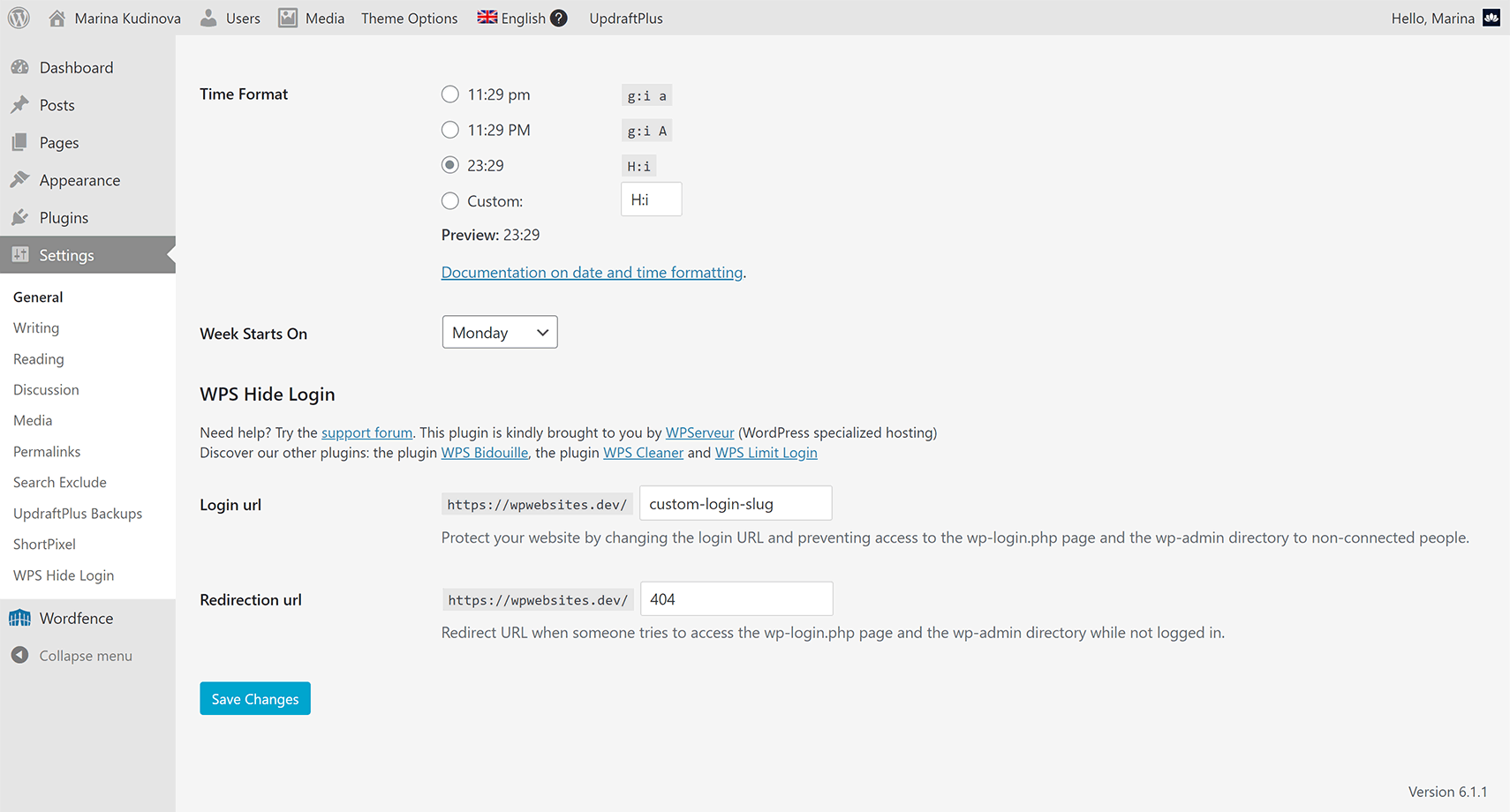
Yet, the main problem with WordPress login security is that the standard login URL is generally known. This makes brute-force attacks possible, which involve ‘guessing’ the credentials to access the dashboard. Wordfence Brute Force Protection module allows to set a limit on login failures and lock the user. But there is an even more reliable approach: a custom login address. I always use Wordfence in combination with WPS Hide Login. This is a free plugin that lets you change your login URL and thus zero brute-force attacks completely. WPS Hide Login appends its tools at the bottom of the Settings ↦ General page. There you can specify a custom slug instead of wp-login.php, and set the Redirection url, whereto the wp-login.php and wp-admin will be redirected when not logged in. Based on my testing, WPS Hide Login is compatible with 2FA and reCAPTCHA of Wordfence.
Remark 1: If you use WPS Hide Login and WP Rocket, you do not have to do anything, since the plugins are fully compatible. However, if you use another caching plugin, you should add the custom login URL to the list of pages not to cache.
Remark 2: The only problem with WPS Hide Login is that the Redirection url setting quite often doesn’t function properly. In some setups it works for the wp-admin directory, but the wp-login.php page is always redirected to some default 404 address. Thereto, depending on how your 404 is made, WPS Hide Login might pull a badly rendered page. In such a case, I manually redirect wp-login.php to proper 404 via .htaccess. Sub-remark: don’t do the same to wp-admin, since it is used when working in the dashboard. To redirect wp-login.php, add the following code to your .htaccess right below the # END WordPress line:
Redirect 301 /wp-login.php https://yoursite.com/your-page-404
Final remark: If you forgot your custom login URL, just go to /wp-content/plugins/ directory on your web server and delete the wps-hide-login folder; don’t forget to remove the 301 redirect from your .htaccess file if you had to add one. After that you will be able to log in through the standard wp-login.php path and reinstall the WPS Hide Login plugin.

WP Rocket: speed and performance, premium
WP Rocket, widely recognized as the industry benchmark for out-of-the-box performance with over 5M active websites, is consistently rated the No. 1 caching solution for WordPress. WP Rocket is very easy to use and set up, it applies 80% of web performance best practices upon activation, and is compatible with most themes, builders, and plugins such as SEOPress and Wordfence among others. Included features go beyond the standard caching plugin. In particular, WP Rocket provides: page and browser caching, cache preload, eCommerce optimization, WebP serving, automatic CSS and JS minification and combination, self-hosted Google fonts, database cleanup, and a lot more. In short, the plugin will definitely improve your PageSpeed score to a large degree. In addition, PageSpeed Insights automatically detects whether WP Rocket is installed on your website and offers specific recommendations for suboptimal plugin settings.
WP Rocket pricing and licenses: Single, Plus, Multi
WP Rocket is a premium plugin, that is, there is no free version available. At the same time, the cost is quite affordable and there are different pricing plans depending on how many websites you need to speed up. The Single plan costs $59 per year and includes product updates and support for one site. The Plus plan for $119 a year covers three sites. Whereas Multi licenses for ≥50 sites start at $299 per year. Besides, WP Rocket offers a 100% money-back guarantee within 14 days, and, periodically, 20% discount.
About the persistent object cache and when not to use it
Persistent object caching stores the results of frequently repeated database queries in a fast object store. This can significantly reduce database load and improve server response time. If you run a large, high-traffic, or highly dynamic website, you should use persistent object caching – provided your hosting environment is properly configured for it. WP Rocket does not create this type of cache, so you’ll need an additional plugin to enable it (see the What is Object Caching… post by WP Rocket).
However, on typical shared hosting, persistent object caching often does not improve performance and can sometimes even slow things down. In that case, it’s better to leave it disabled. WordPress will still show the “You should use a persistent object cache” notice in Site Health. To hide it and restore the “Great job!” message, add the following code to your functions.php file:
// Remove the WP site health check for persistent object cache

function prefix_remove_php_test( $tests )
{ unset( $tests['direct']['persistent_object_cache'] ); return $tests; }
add_filter( 'site_status_tests', 'prefix_remove_php_test' );

Recommended setup of must-have WordPress plugins
| Plugin | Features | Versions | Best Plan | Cost | Sites |
|---|---|---|---|---|---|
| Imagify | Images | Freemium | Monthly Growth | $4.99 / month | Unlimited |
| WPvivid | Backup | Freemium | Pro Blogger | $49 / year | 2 domains |
| SEOPress | SEO + schemas | Freemium | SEOPress PRO | $49 / year | 1 website |
| Wordfence | Security | Freemium | PREMIUM | $149 / year | 1 website |
| WP Rocket | Performance | Premium | WP Rocket Single | $59 / year | 1 website |
The table above summarizes my favorite must-have WordPress plugins. All of them work well together and are compatible with all popular WordPress themes and page builders. I hope this post helps you choose the right combination to fit your budget, needs, and workflow. ■